

Firmware is the computer program embedded in and running your Performance Monitor. We strongly recommend that you keep your firmware up to date with the current version. To update the firmware in your Performance Monitor, you need: a computer, the free Concept2 Utility software (download links are to the right) and a USB cable.
Once downloaded and installed, the Concept2 Utility will guide you through the necessary steps to update the firmware on your Performance Monitor. Additional information can be found below.
- Updating Firmware with a USB Cable
-
This method requires a USB cable that has a USB Type B plug on one end for plugging into the Performance Monitor, and either a USB Type A or USB Type C plug on the other end for connecting to your computer (this is the same cable used to plug in a printer). Please check your computer to see what type of USB plug it accepts. Refer to the images below for help.
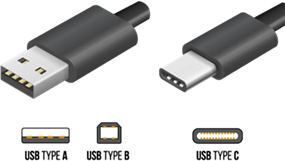 .
.- On your computer, connect to the internet and then launch the Concept2 Utility.
- Connect your Performance Monitor to your computer with the USB cable. Wait until you see ‘CONNECTED’ in the green box on the Concept2 Utility.
- Click Update Firmware.
- The Concept2 Utility checks the firmware currently installed on the Performance Monitor, and will indicate whether an update is available. If your monitor firmware is current, the Concept2 Utility will let you know that as well.
- Click Install Vxxx where xxx is the firmware version number you're about to install. If a beta firmware version is available and you want to install it instead, click the Install Beta Firmware link. More info
Beta firmware releases are development versions made available for testing before general release. Beta firmware may include new features and fixes for issues discovered in current versions. When beta firmware is available, it will be offered as an installation option through the Utility when you check for updates.
Sometimes beta firmware can have bugs so we really appreciate getting all feedback on beta firmware. Please email your feedback to info@concept2.com
The update takes several minutes. During the update, the Concept2 Utility displays a progress indicator and will let you know when the process is complete.
Additional Resources
-
- How to check your current firmware and/or hardware version
-
- Power the Performance Monitor on by pressing any button
- Select More Options > Utilities > Product ID
- The firmware and hardware version will be listed as the top two (2) lines on the Product ID screen.
- Concept2 Utility system requirements
Current Firmware Versions
Indoor rowers
- Version 332 (released July 2018)
- Version 108 (released November 2012)
SkiErgs—Version 732 (released July 2018)
The current firmware version that applies to your PM3 depends on the age of the monitor. The PM3 timeline has more information.
NOTE: If you have very old firmware (PM3 Firmware Version 82 or lower) and have trouble updating to the current version using the Concept2 Utility, please try using Firmware Version 101 file (download here) instead (available for PCs only). Once on Version 101, you can then use the Concept2 Utility for future updates.
Concept2 Utility 7.14.00
.exe format
.dmg format
Attention Mac users: The latest release of the Concept2 Utility for macOS is 7.09.7 and is compatible with macOS Catalina. If you are running OS X El Capitan version 10.11 or older, please download 7.09.2.
Important:
- If you have workouts in PM Memory, we recommend transferring those workouts to your Online Logbook account before updating your firmware.
- Please report problems and feedback regarding the current versions of PM3 Firmware to info@concept2.com.
Receive Firmware Update Emails
Fill in the form below to get notified every time we release a new firmware update.